
New Email Setup
The new emails have been setup and below is how you can access them on different devices. If you have any questions, email me at [email protected].
Specific email instructions are provided below the emails that need them. If you cannot access your email because of wrong password, try Mayflower18
Your password is the one you gave Marilyn. You will also have an alias email which is [email protected]
Your password is changed to the one you requested.
Your password is the same as your asst-historian one and I have all asst-historian emails forwarding to this email address.
iPhone/iPad Instructions
1. On the iPhone/iPad screen, open settings.
2. Go to Passwords & Accounts > Add Account, then choose Google
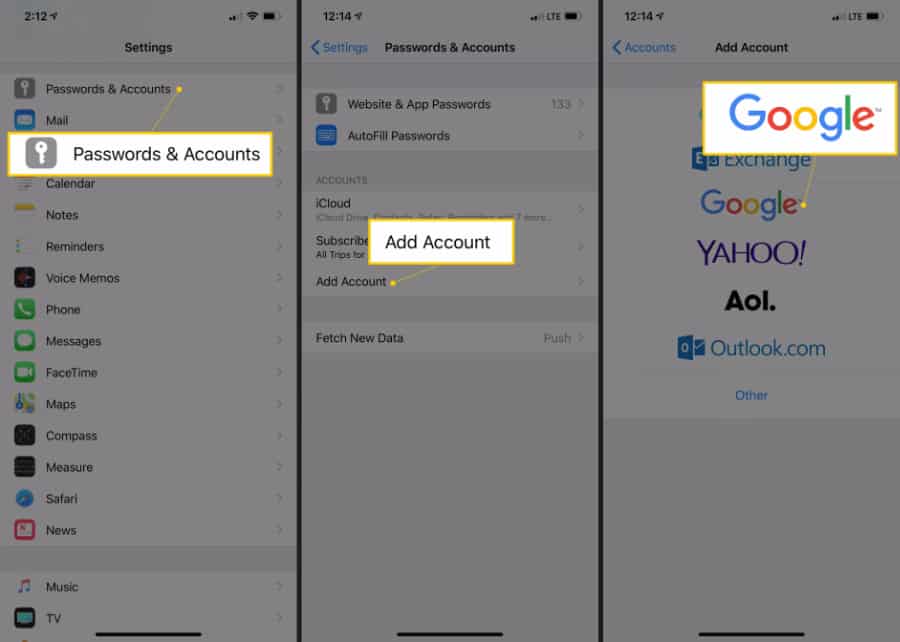
Note:
These screens are named differently on older versions of the Mail app. Choose Mail > Contacts > Calendars, then go to Add Account > Google Mail.
3. Enter your Mayflower Email address, then tap Next
4. Enter your Email Password, then tap Next
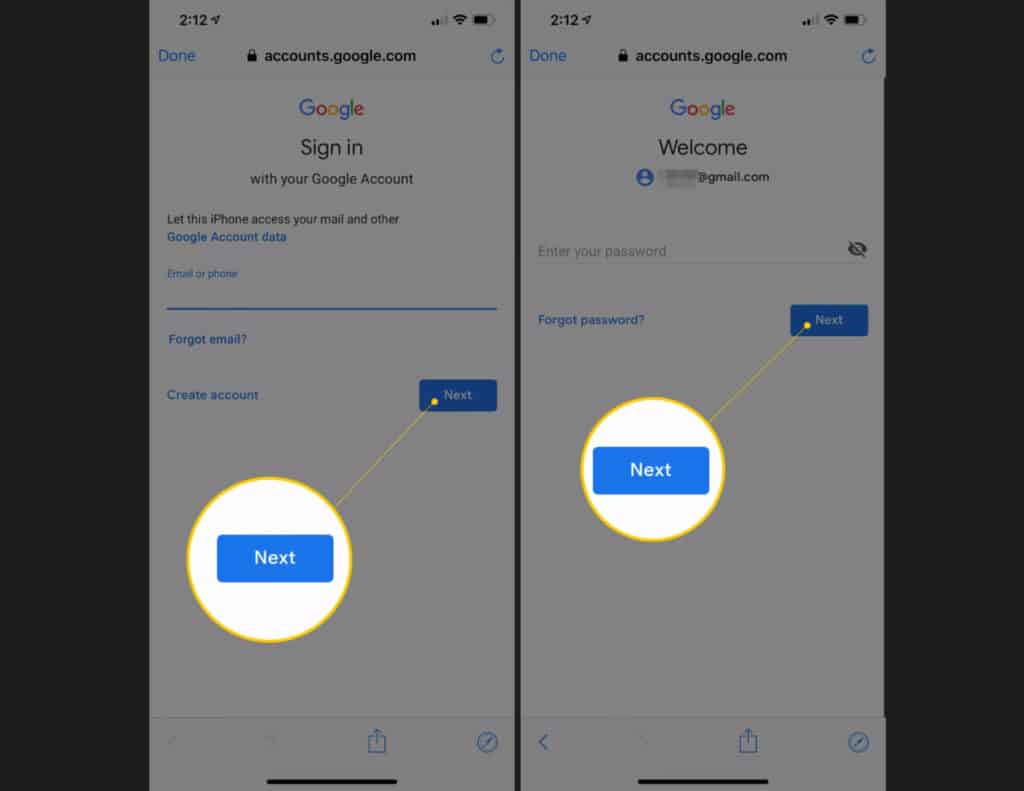
4. Turn on the Mail toggle switch to ensure that your email can be used. You can also enable other items to sync contacts, calendar events, and notes.
Android
1. Tap Settings > Accounts.
2. Then tap Add account > Google.
3. Sign in with your email and password and tap Next
Outlook
1. Add New Account in Settings
2. Click POP or IMAP option
3. Enter the email and password
4. Outlook should auto find your account and finish setting it up
Using the Web
1. Go to https://gmail.com or https://mail.marylandmayflower.org
2. Enter your Mayflower email address and click Next
3. Enter the password
4. If prompted with any screens, click accept or continue
Other/Manual Setup
If you need to manually setup the email through another provider, use the following settings:
Incoming mail settings
Server: imap.gmail.com
Require SSL: Yes
Port: 993
Outgoing mail
Server: smtp.gmail.com
Require SSL: Yes
Require TLS: Yes
Require authentication: Yes
Port for SSL: 465
Port for TLS/STARTTLS: 587